Set Per User Spending Limits
Control how much an individual user can spend each month.
You can set a monthly spending limit for any user on your team to keep purchasing within budget. Once a limit is set, the user is prevented from spending more than the amount you allow each month.
Note:
Only account owners can create and edit spending limits.
Note:
Creating and enforcing spending limits requires a premium subscription.
Set a Spending Limit (Web Only)
Note:
Spending limits can only be set for users whose role allows them to place purchases.
- Navigate to the Users tab and select an existing user.
- Scroll down to the User Spending Limit section.
- Click Set Spending Limit and enter a value.
- Once a spending limit is set, the user will be able to place purchases up to that amount. The user will be blocked from exceeding the threshold you set, but can request approval if a purchase exceeds their limit.
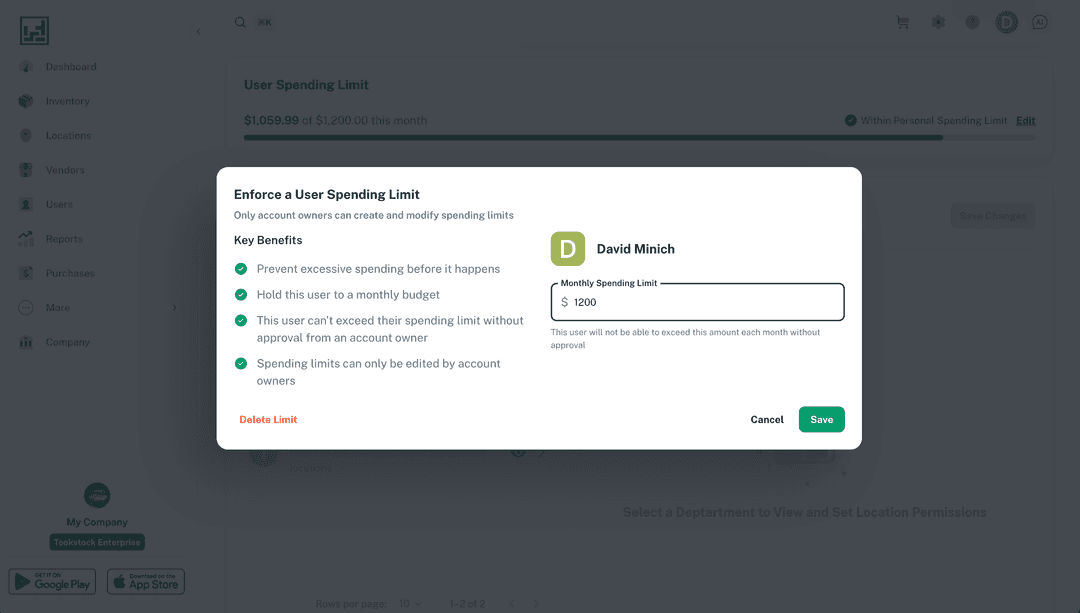
How Spending Limits Work
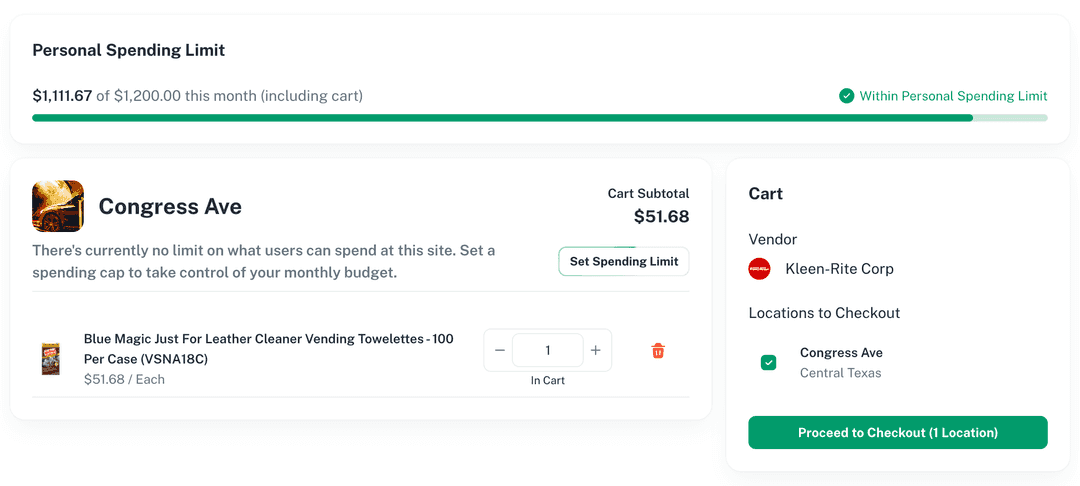
- The user can see an indicator showing how much they’ve spent so far each month.
- A user’s spending resets at the start of each month.
Requesting a Purchase Over the Limit
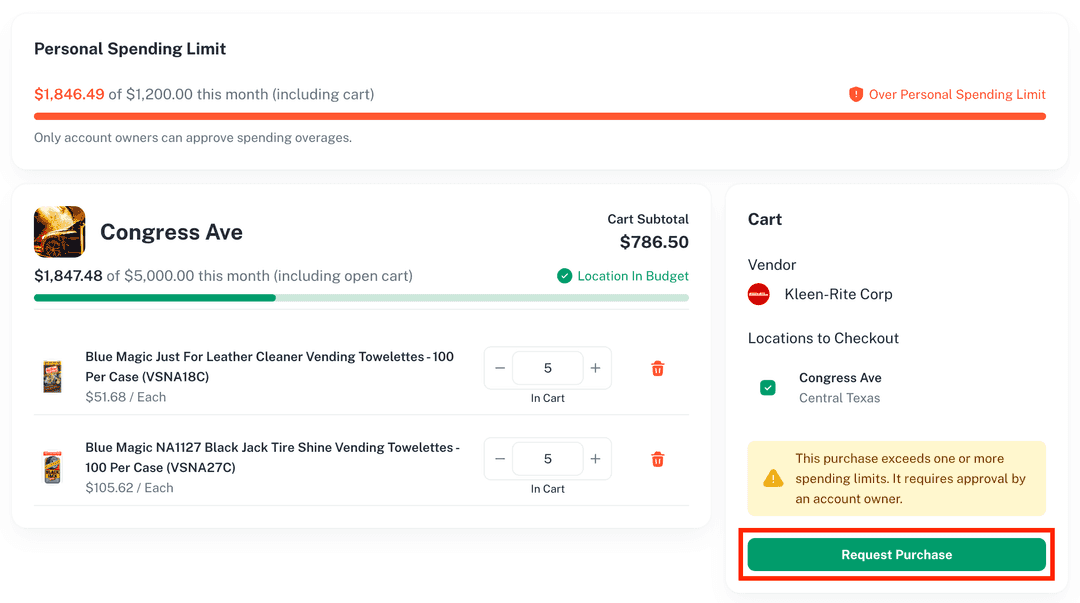
If a user attempts to make a purchase that exceeds their monthly spending limit, they will be presented with the option to Request a Purchase.
- The user selects an approver from a list of valid approvers.
- The chosen approver is notified of the request.
- The approver can modify the open cart and complete the purchase.
Note:
Use spending limits to give team members purchasing freedom while keeping monthly costs under control.