Set Location Spending Limits
Control how much can be spent at a location each month.
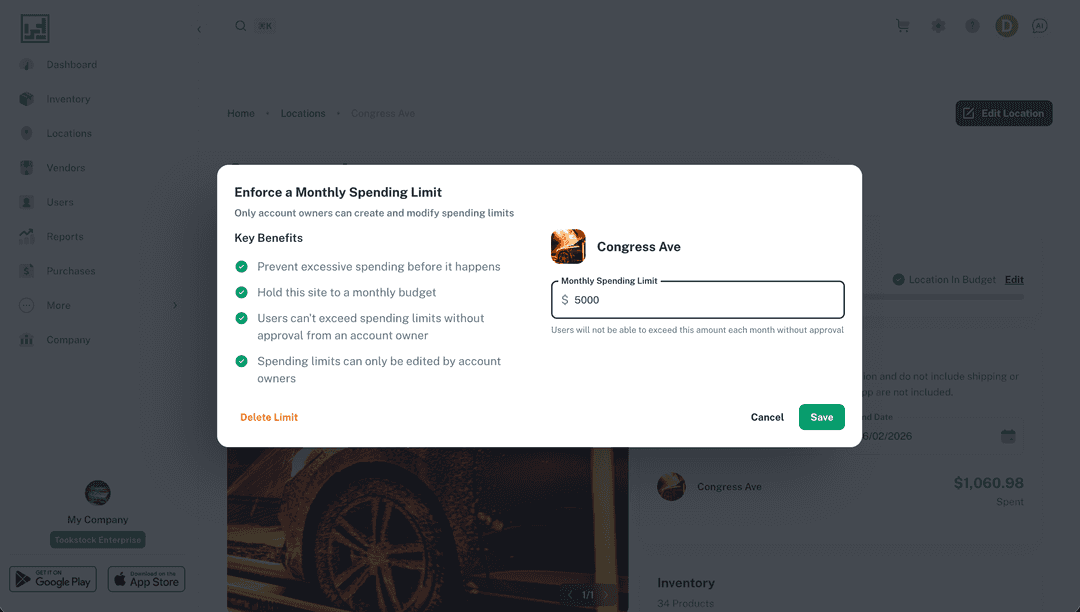
You can set a monthly spending limit for any location to keep purchasing within budget. Once a limit is set, users are prevented from placing purchases for that location that exceed the amount you allow each month.
Note:
Only account owners can create and edit spending limits.
Note:
Creating and enforcing spending limits requires a premium subscription.
Set a Spending Limit (Web Only)
- Navigate to an existing location's details page.
- Scroll down to the Monthly Spending Limit section.
- Click Set Spending Limit and enter a value.
- Once a spending limit is set, users will be prevented from placing purchases for that location that exceed it.
How Spending Limits Work
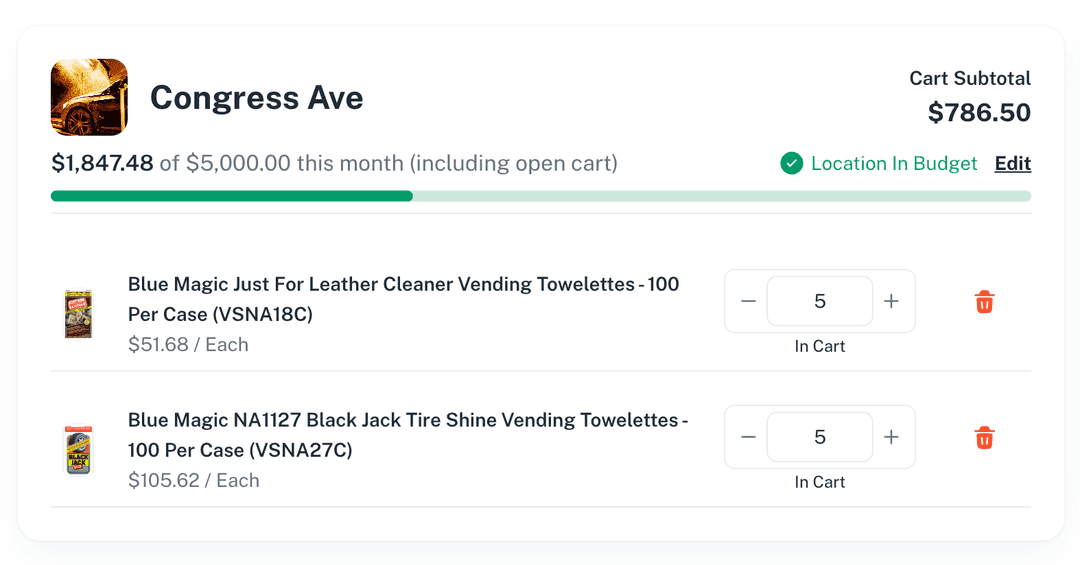
- Users who have access to place purchases at the location can see an indicator showing how much the location has spent so far each month.
- Users without purchasing permission will not see the indicator.
Requesting a Purchase Over the Limit
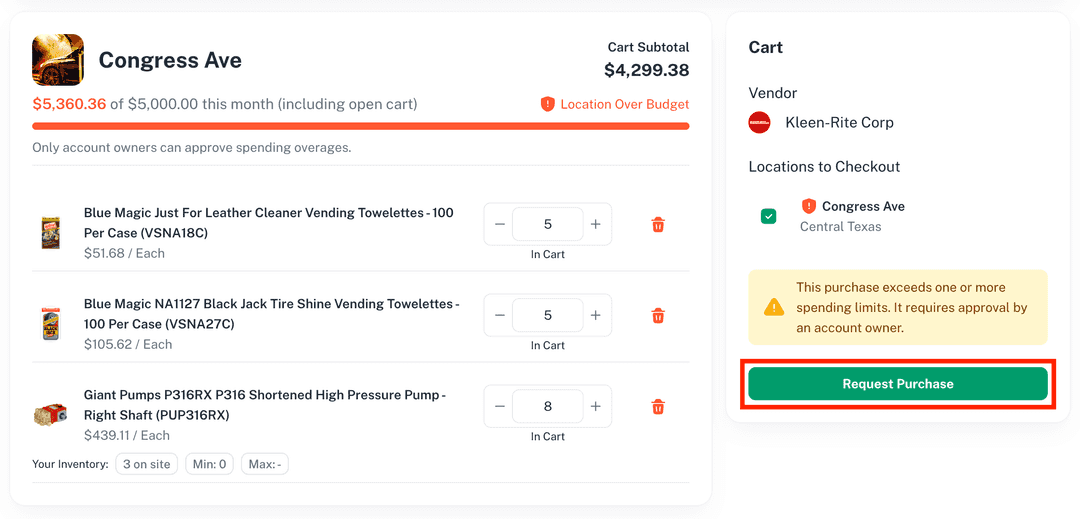
If a user attempts to make a purchase that exceeds the location's monthly spending limit, they will be presented with the option to Request a Purchase.
- The user selects an approver from a list of valid approvers.
- The chosen approver is notified of the request.
- The approver can modify the open cart and complete the purchase.
Note:
Use location spending limits to give teams purchasing freedom while keeping each location's monthly costs under control.